Overview
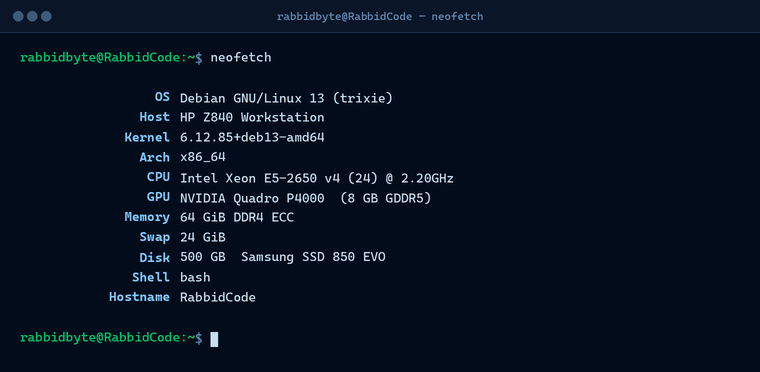
I had an HP Z840 Workstation sitting around collecting dust and decided it was the perfect candidate to become a dedicated AI development machine. The goal was simple: a clean build with a proper Linux desktop, all the AI coding tools installed and talking to each other, network storage mapped to the SAN, and git set up and ready. The machine now runs Claude Code, opencode, and VS Code with the full AI assistant stack — and goes by the name RabbidCode.
This is the full build log.
Hardware
The Z840 is an older workstation but it is seriously over-specced for this kind of work. The Xeon E5-2650 v4 has 12 cores and 24 threads, the Quadro P4000 handles any GPU workloads, and 64 GB of ECC RAM means it is never going to complain about memory pressure. Throw in a Samsung SSD for the OS and it moves fast.
Base Install: Debian 13 Trixie + Cinnamon
Started with a minimal Debian 13 (trixie) netinstall with Cinnamon selected as the desktop environment. Nothing beyond the basics — just the base system and desktop. After the install the usual housekeeping before touching anything else:
sudo apt update
sudo apt upgrade
sudo apt dist-upgrade
sudo apt full-upgrade
sudo apt install curl
OhMyDebn
OhMyDebn is a Cinnamon desktop configuration toolkit for Debian that handles everything from color schemes and wallpapers to panel layouts, terminal configuration, and a solid set of developer tooling out of the box. If you are running Cinnamon on Debian and have not tried it, you should. It is what gives RabbidCode its look and feel.
curl -LO https://ohmydebn.org/install.sh
bash install.sh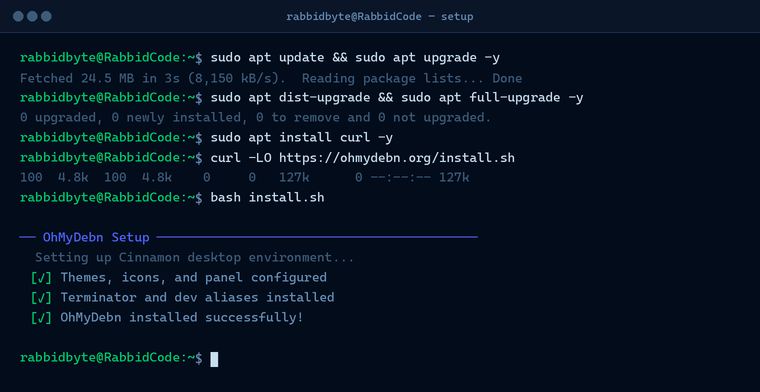
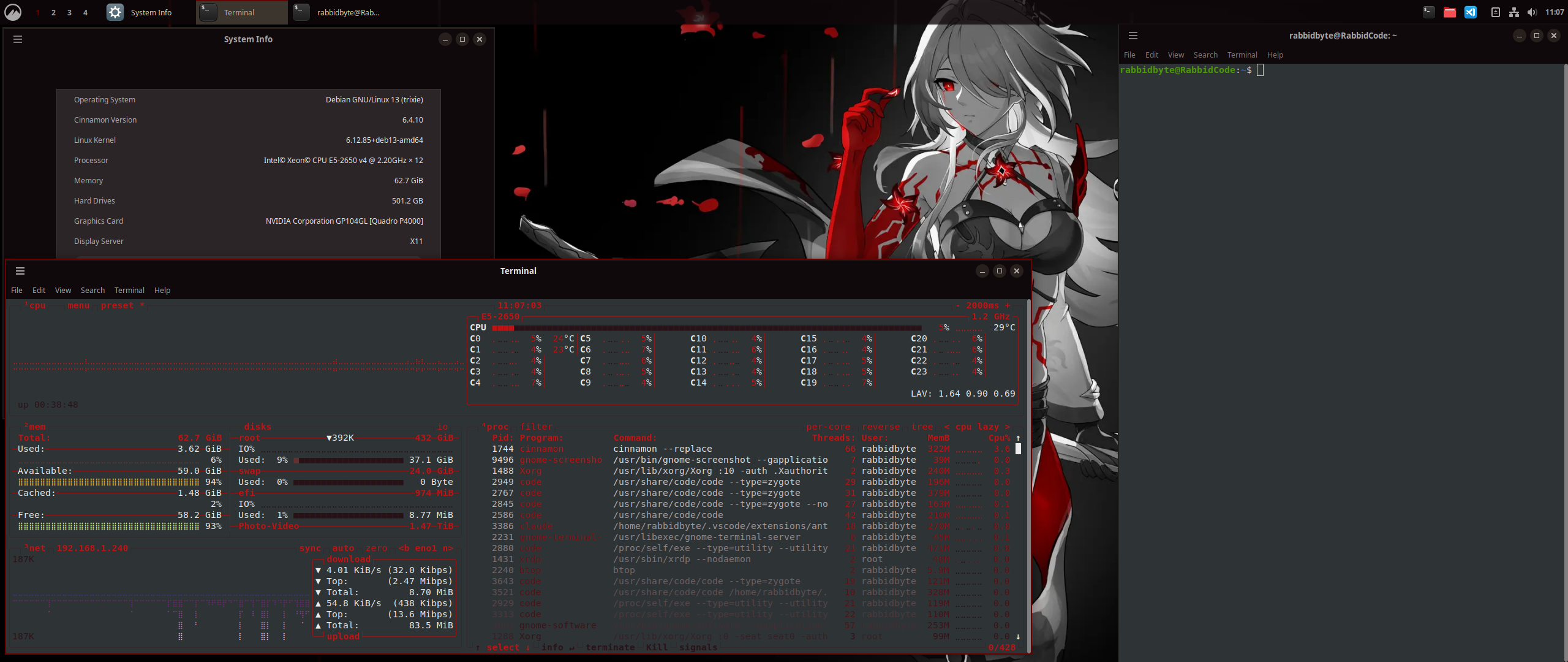
After the installer runs and you reboot you get a clean, polished Cinnamon environment with sensible defaults already in place. Here is the final desktop:
AI Tools
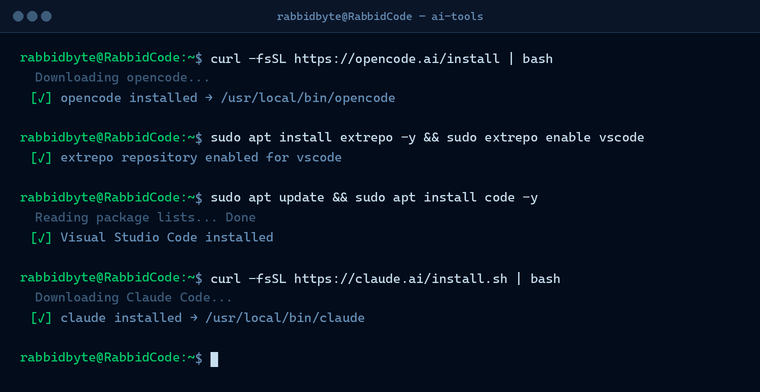
Three tools make up the core of the AI dev stack: opencode, Visual Studio Code, and Claude Code. Between the three of them pretty much every AI-assisted development workflow is covered.
opencode
opencode is a terminal-based AI coding assistant that supports multiple models. One command install:
curl -fsSL https://opencode.ai/install | bashVisual Studio Code
VS Code is not in the standard Debian repos so it comes in via extrepo. The non-free flag also needs to be enabled in the extrepo config before enabling the VS Code repo:
sudo apt install extrepo -y
sudo sed -i 's/# - non-free/- non-free/' /etc/extrepo/config.yaml
sudo extrepo enable vscode
sudo apt update
sudo apt install code -y
Claude Code
Claude Code is Anthropic's official CLI for Claude. It also integrates directly into VS Code via extension. Install is a single curl:
curl -fsSL https://claude.ai/install.sh | bashVS Code Extensions
Extensions installed to round out the environment:
- Claude Code for VS Code
- Live Preview
- opencode
- Pylance
- Python
- Python Debugger
- Python Environments
- TODO Highlight
- vscode-icons
Map Drives to SAN
With the machine on the network the SAN shares mount at boot via fstab. SMB client and CIFS utils are required:
sudo apt install smbclient
sudo apt install cifs-utils
Add the mount entries to /etc/fstab. Credentials live in a dedicated auth file owned by root — do not put them directly in fstab:
sudo touch /etc/cifsauth
sudo chmod 600 /etc/cifsauth
Edit /etc/cifsauth as root with your share credentials, then reference it in each fstab entry with credentials=/etc/cifsauth.
Git Setup
Global git config and an SSH key for GitHub. ed25519 over RSA — smaller, faster, and more secure:
git config --global user.name "Your Name"
git config --global user.email "your.email@example.com"
ssh-keygen -t ed25519 -C "your_email@example.com"
eval "$(ssh-agent -s)"
ssh-add ~/.ssh/id_ed25519
Copy the contents of ~/.ssh/id_ed25519.pub and add it to your GitHub account under Settings → SSH and GPG keys.